#95 Shovelbums Guide Part 16.1: Pace and Compass Maps

I split this topic into two posts.  Part 1 covers taking coordinates for a pace-and-compass sketch map and Part 2 covers the mapping.  Enjoy.

Many projects these days use a sub-meter GPS to record sites and nothing else.  It’s actually been a little while since I had to “pace and compass” a site map.  Until about June of last year I worked for a company here in the Great Basin that uses Garmin GPS Map 62s to map sites!  Those GPSs are NOT sub-meter and the accuracy leaves something to be desired.  I wouldn’t have minded so much, as long as we still did a pace-and-compass map as well.  So, for those of you that are new in this field and only did a pace-and-compass map in field school or have never done one at all, this post is for you.  First, though, why do it?

Last summer and fall I was working for a company that uses a sub-meter GPS to map sites.  It was running ArcPad software which allows you to make a fairly accurate representation of the site.  However, some things just aren’t intuitive if you’ve never had to draw out the site.  I’m not sure why that is but it is.  For example, this person I had on my crew always had to be told to record the courses of the drainages and to mark things like large rock outcrops.  You wouldn’t even think to leave these details off of a hand-drawn sketch map.  What is the easiest way to draw a sketch map?  Pace and compass.  Let’s get into it.

The first thing you need to know is what the length of your pace is.  Your pace is something you probably already know from doing surveys.  For those of you that don’t, here is how you do it.  First, find a straight stretch of uninterrupted ground like a road or parking lot.  Next, roll out 30 m from a roll-up tape measure.  Now, simply walk at a normal speed, without stretching out your stride, and count the number of steps it takes to get to the end.  You might want to do this several times so you can take an average.  This number is your pace.  I’m about 6’1” and my pace is about 43 steps.  I have freakishly short legs.  I know some tall people that have a pace under 30 steps!  Still, some people like to shorten or lengthen their stride to make it exactly 30 steps.  I would say that you should do what ever you are comfortable with as long as you are relatively accurate and consistent.

My supplies: A Brunton Eclipse Compass, a pencil, and a Write-in-the-rain notebook.OK.  Now that you have your pace, it’s time to get your map supplies together.  Before we start drawing the map, however, you will need some other supplies first.  To gather the data for your map you will need a notebook (or smartphone for you tech savvy people), a pencil, and a compass.

Now, the first thing you have to realize is that not every site is going to be mapped the same way.  For example, if you have a large lithic scatter with no tools and no features you may just want to accurately map the boundary, a few flakes and natural features, and that’s it.  On the other hand, if you have a mining site with prospect pits, shafts, refuse piles and whatever, you may want to first map the features then simply draw the boundary around them.  Basically, you have to figure out what your boundary is being created by.  It might be that your boundary is being created by a project APE (Area of Potential Effect), pipeline corridor, or some other artificial boundary.

Now we are ready to take some measurements.  There are two ways that I can think of that are accurate and easy.  First I’ll illustrate the way I was trained.  You start by picking an arbitrary point in the center of the site, usually the datum (the datum isn’t always in the exact center of the site and may be a large boulder or tree).  However, out here in the West (well, Nevada.  Actually, northern Nevada.  I don’t know what they do down south) we are no longer putting in a solid datum on the site (i.e. a wooden stake or a length of rebar).  It’s being done electronically in the office.  So in that case I would probably pick a natural feature, such as a large rock or a tree, or I would simply put a group of pin flags in the ground where I plan to start.  Once you have your starting point it’s time to take your first measurement.

These are actual measurements that I took on a project a few years ago.If I have clearly defined boundaries then it’s usually easier for me to take my first measurement going North.  On your notepad you can start by just writing datum (or tree, pin flags, or whatever) on the top line.  Using your compass (set to the proper declination) find north and pace to the boundary.  If you don’t have a boundary and are simply using features, skip to the next paragraph.  After you’ve paced to the boundary, write down the distance and bearing to your point from the datum on the next line in your notebook.  It will look like this: “12@0°”.  I usually walk counterclockwise (anti-clockwise for you folks across the pond) so I’ll sight in my next point and walk to it.  Write that distance and bearing in your notebook.  It might look like this: “15@275°”.  Make your way around the entire site back to that first point you took North of the datum.  That’s the boundary!  Next you’ll want to take points on all the numbered artifacts, features, and what ever else your crew chief wants you to.  On small, manageable sites (50 x 50 or so) I take all of those points as distance and bearing measurements from the datum.  On larger sites you may have to just do what ever makes sense.

Mapping a site using features or numbered artifacts can be done a number of different ways.  If you don’t have many features or artifacts you can simply take distance and bearing measurements from the datum for every point.  Once you draw in the features and artifacts you can simply draw a line around the site.  There are other ways to do it too.  You just have to decide what makes sense for that site.

I’ve split this blog post up into two posts.  I like to stay at or under 1,000 words for each post and this one was getting a bit long.  Click here for Part 2.

#94 Shovelbums Guide Part 15: The Smithsonian Trinomial System

When I was on my first professional archaeological dig with a CRM company I saw many things that puzzled me.  The first one was the grid they had set up.  I didn’t understand why they weren’t using latitude and longitude.  At that point I’d never heard of a UTM coordinate.  What kind of crazy system measures in meters and gives a unit coordinate of 1057 mE / 1062 mN?  Ah, the naiveté of inexperience.

The other thing that no one ever bothered to explain was the nationwide numbering system used for sites in the United States.  It just looked like an indecipherable string of numbers with an underlying structure that I just could’t make out.  Even if you’re relatively new in the field you’ve seen the numbers.  They look like this:

26WA12477--------9PM201-----------23AR9236------------8MD1

------------50TX3546-------------12TN30-----------32GNA3476

Recognize them now?  What do they mean?  I’m going to cut to the chase for the *tl;dr* crowd.  The first number represents the state, the letters are a two-digit code (sometimes three) for the county, and the last numbers represent the number of sites that have been recorded in that county.  When you ask your state archaeologist for a site number, the last set of numbers will represent the total number of sites recorded within that county (give or take a few - you may not have checked your email before they issued more numbers to someone else).

The state numbers run from 1 to 50.  The District of Columbia, American Samoa, the Federated States of Micronesia, Guam, the Marshall Islands, the Northern Mariana Islands, Palau, Puerto Rico, and the Virgin Islands do not get a number (who knew we had so many territories?).  The numbers mostly go in alphabetical order.  The exceptions are Alaska (49) and Hawai’i (50).  They weren’t states when the system was devised.

The Smithsonian Trinomial number was devised and perfected over a number of years by the Smithsonian’s River Basin Survey (RBS).  The RBS operated in a number of states and needed a comprehensive system of designating new sites.  The River Basin Survey started in 1946 and by the end of fiscal year 1947 in the Missouri Basin, 376 sites in seven states had been recorded.  Paul Cooper, an RBS staff member, was instrumental in devising the first incarnations of the system between 1946 and 1947.  The early system was based on an even earlier system that was used in Nebraska during the 1930s for WPA (Works Progress Administration) projects.  Other states were using a system similar to Nebraska for WPA fieldwork but none were identical.  Carl Miller, also an RBS staff member, added county codes for several southeastern states in 1958.  He was following some state universities and historical societies that had already incorporated the county code.

Although the RBS program ended in 1967, individual SHPOs continued to assign site numbers based on the Smithsonian Trinomial System.  Now, all fifty states issue site numbers [see the update below] a number of states issue site numbers using that system.  A lot of spatial data can be determined just by being able to decode the Smithsonian Trinomial.  Think about it.  Without knowing anything about a site you can narrow its location down to the county level in a matter of minutes.  I wish everything in archaeology worked so well and was so universally accepted.

I’d like to thank Rose Chou from the National Anthropological Archives (I didn’t even know such a thing existed) at the Smithsonian Institution in Maryland for contributing most of the information in this post.  I attempted, several times, to find historical information online about this subject but came up empty handed.  Believe it or not, it’s not even on Wikipedia.  If I had a hard source for this post (aside from an email) I’d write the entry.  Maybe someday.

Hope you’re smarter now!

See you in the field.

#93 Shovelbums Guide Part 14: Munsell Book of Colors

My first experience with the Munsell Book of Color was on a dig in Olduvai Gorge, Tanzania, Africa, during my field school.  The field director asked me to Munsell a profile and I had no idea what he was talking about.  He then told me that it was a British thing.  They always Munsell soil samples and profiles.  I later learned that it is not, of course, a British thing.  Still not sure why he said that.

This post is for people that use Munsell Color Books everyday and also for those that have never heard of it.  Honestly, I never really understood what the different pages really meant and what the value and the chroma are.  Maybe you learn that in art class but I haven’t had an art class since second grade.  For those of you that know everything, here is an Indiana Jones / Cat thing.  For everyone else, prepare to geek out.

Figure 1. Munsell Hue ChartThe Munsell color system specifies colors based on three dimensions: hue, value, and chroma.  For non-art majors, I’ll explain what these are.  Hue is defined as “the degree to which a stimulus can be described from stimuli that are described as red, green, blue, and yellow”.  Other definitions state that hue is a “pure” color without tint or shade.  In the Munsell system there are five principle hues: Red, Yellow, Green, Blue, and Purple.  There are five intermediate hues which create a total of 10 hues which are then broken up into 10 more hues each for a total of 100 hues.  Those hues are given values.  Figure 1 illustrates where the popular hues, the few that archaeologists typicaly use, lay on the color wheel.

Figure 2. Munsell Value ChartThe next metric, value, refers to the lightness of a color.  In the Munsell system it is measured vertically from a value of 0 (black) to 10 (white).  The colors from black to white, including the various shades of gray in-between, are called neutral colors.  All other colors are called chromatic colors.  We’ll see why below.

Figure 3. Munsell Chroma ChartThe third metric, chroma is measured from the center of color system, horizontally, and represents a color’s purity.  A lower chroma is washed out, such as in pastels, and a higher chroma is brighter.  There isn’t necessarily an upper limit for chroma.  Some hues have a higher potential chroma than others.  For example, light yellow colors have a higher potential chroma than light purples do because of the nature of the human eye and the physics of color stimuli.  Normal reflective materials have a chroma into the low 20s while some fluorescent materials have chroma values as high as 30.

So what does this all mean for archaeology?  Well, most of it doesn’t mean a whole lot.  We use a very small wedge on the Munsell Hue wheel.  I just feel that it’s good to know the details about the things we use every day.

Where did the Munsell Color System come from?

The idea of using a three dimensional shape to represent all possible colors was first explored in the mid-1700s.  Several shapes were chosen including a triangular pyramid, a sphere, a hemisphere, a cone, and a tilted cube.  The most sophisticated design was a slanted double cone conceived of by August Kirschmann in 1895.  Kirschmann’s color solid was the first to recognize the difference between bright colors of different hues.  All of these models encountered problems when trying to accommodate all possible colors and none were based on the measurement of human vision.

Albert Munsell, a professor of art at the Massachusetts Normal Art School, wanted a way to describe color that would use decimal notation instead of color names which could be misleading.  He started on his new system in 1898 and finished it seven years later in A Color Notation in 1905.

Figure 4. The Munsell Color SolidThe first Munsell Book of Color was published in 1929  and improved on deficiencies regarding the physical representation of the theoretical system.  Experiments performed by the Optical Society of America in the 1940s resulted in improvements to the system and the familiar notations that we know today.

The Munsell system today is used, not only for archaeology, but for skin and hair colors in forensic pathology, matching soil colors for the USGS, shades for dental restorations, and in breweries for matching beer colors.  I thought that last one would get your attention.

Want your very own Munsell Book of Color?  The full book will cost you.  The full book, with over 1,600 color chips (in glossy or matte) is $945.  You’ve probably never seen the full book.  I never have.  That’s because they sell a soil version.  The Munsell Washable Soil Color Charts (2009 Edition) runs for about $185.  You can find it at the previous link or at Forestry Suppliers, among others.  The Munsell Store also sells a pack with just the 7.5YR and the 10YR page for an astonishing $75.

Alternatively, you can buy the $4.99 iOS app for your iPhone.  Check out the post here.

Hope you learned something!  See you in the field.

#92 Archaeology Apps for your new iPad

The “New iPad” was announced by Apple last week and came out for sale on Friday, March 16.  Did you get one (Lindsey!)?  Did you take advantage of the lower price on the iPad 2?  It’s $399 for the 16GB Wifi version and $549 for the 16GB WiGi+3G version.  The iPad 2 price tag should bring over anyone considering getting a tablet from another company.  

So, it’s Sunday morning, you’re drinking coffee (or tea), maybe it’s raining, and you have your new iPad sitting on your lap.  What do you want to do with it?  On Sunday morning it’s perfect for reading blogs with Flipboard or maybe watching a show on Netflix or Hulu.  When Monday comes around you’ll be ready for work and ready to amaze your co-workers with your shiny new iPad and you’ll want to show them what it can do.  Here are a few apps to get you started.  Prices are in U.S. dollars and links go to the U.S. App Store.

iAnnotate PDF ($9.99) I use this app nearly every time I record a site or type up a site record.  Every piece of reference material I have is organized on this app.  You can import PDFs via a free server download on your computer which syncs with your iPad (on the same WiFi network) or you can download PDFs from the internet or email directly on the iPad.  Once you install iAnnotate a link will appear in most other applications that allows you to view your PDF in iAnnotate.  The app has it’s own web browser and can connect to a server.  Ever see a crew chief or field director carry around a 2 in three-ring binder full of reference materials?  Mine is about 1 cm thick, weighs 1.3 pounds, and is shiny.  Beat that.

Documents To Go - Office Suite ($9.99) I bought this app back when I was in grad school.  It came in handy for creating and editing Word and Excell documents on the go.  The reviews on the iTunes store are not very good but that mostly relates to the fact that they haven’t adding a print option yet.  That’s not really a problem for me since I don’t print things, usually.  I’ve had great success with this app, however, there are a number of quality MS Office apps for document creation and editing.  Look around, read reviews, and do your homework.  None of these apps are cheap and you don’t want to get stuck with something that doesn’t fit your needs.

Apple iWork Products ($9.99 each) There are three Apple programs that work well in the field.  Pages is a powerful word processing app that works, with one purchase, on your iPhone and on your iPad.  You can create documents on either device and share them as PDFs, Word Files, or Pages files to other computers via email and other options.  Numbers is Apple’s spreadsheet program.  The app has a great feature for filling in tables.  You create a form based on column headings.  The form makes data entry almost fun and is really easy to set up.  I used that feature in grad school to enter magnetometry data during my shallow geophysics course.  It was super easy to set up and easy to export.  Keynote, Apple’s presentation app, is great for making dynamic presentations quickly.  Tired of Powerpoint and the usual backgrounds and transitions? Try Keynote.  All of the Apple apps have the ability to sync to Apple’s iCloud.  I’ve created blog posts on my iPhone, added edits on my iPad, and finished it up on my Mac.  All of that is seamless and flawless.  With all of our devices these days and the possibility of dropping them over a cliff, it’s essential to back up to a cloud service.  Get the files off site and store them securely.

Evernote (Free) Evernote is a universal app for all of your iOS devices.  This app is difficult to explain.  You sort of have to find out how it can be useful for you.  I’ve had an Evernote account (free for 60 MB data transfer per month) for a while now but never really knew how I was going to use it.  Recently, though, I found a great way to use it.  I’ve been doing a lot of research into historic artifact dating at work.  When I found a resource in the office, like in an old fashioned book, I would take a hi-res pic with my iPhone and create an Evernote note for it.  Then, if I found additional information on the computer, I could “clip” a portion, or all, of a web page and add it to the note.  These notes are available on all of my devices.  I love having the ability to add different things from different resources into the note.  I can even create a voice note.  When I’m in the field and find a unique bottle base I can snap a pic, create a note, and research it later.  Then, I can add details and references to the note later and have it for the next time I find that base again.  I also use Evernote for projectile points.  I set up a system using IFTTT that allows me to take a pic with my iPhone, post it to Instagram with the hash tag #ppt, then create a new note with that point in a projectile points folder on Evernote.  The note is created automatically and is immediately available on all of my devices.

mColorBook ($4.99) I reviewed this app in it’s own blog post.  Check it out here.

Notes Plus ($7.99) There are a number of note taking apps for the iPad.  I like this one because of the multiple ways of entering onto a single note.  I can draw shapes, type, write with my finger or a stylus, and speak into the microphone.  This is a great app for taking notes in a meeting or for taking notes while talking to a client.  Write in the rain is nice but it’s not searchable, it’s not organized, and it’s difficult to find particular notes.  Upgrade to the 21st century and get Notes Plus.

 Tap Forms HD ($8.99) I reviewed this app in it’s own blog post.  Check it out here.

Oxford Concise Dictionary of Archaeology ($14.99)  This comprehensive dictionary of archaeology, from the people who invented quality dictionaries, contains over 4,000 entries.  It’s a universal app that works on all of your iOS devices.


These apps represent the tip of the iceberg of possibilities.  When you start to think efficiency all the time you’ll start to realize the possibilities of your iPad.  When you start to be more green and recycle more, you’ll want to use your iPad for as much as possible.  Some tasks seem more cumbersome and more difficult on the iPad than on just plain old paper but it’s like everything else, there’s a learning curve.  Once you become more efficient and more capable with your new tablet, you’ll discover a world of possibilities in the palms of your hands.  Crap, I sound like an Apple commercial.  If only they’d pay me.

See you in the field (I’ll be the dork holding the iPad standing next to the crew chief with the three-ring binder trying not to let his site forms blow out of his clip board in the 40 mph wind)

#91 Munsell? There's an app for that.

FYI, the absolutely full version of the Munsell Book of Color is $945. That’s right.

That’s right. Someone finally did it. Why isn’t there a group of programers out there that also happen to be archaeologists? If I ever own my own company, instead of having armies of people typing up site forms, I’m going to have a few software developers creating and supporting field apps that are designed by, and for, archaeologists. But, I digress…

A couple of software developers from China have turned the $185 Munsell Color Book into an app for iOS and Mac. The iOS version is a universal app for $4.99 which means you can buy it once and have it on your iPhone and on your iPad. I likely won’t use it much on the iPad but I can already see the usefulness for the iPhone. My iPhone has an OtterBox case which will allow me to either hold soil on a trowel over the screen or put soil directly on the screen to allow me to determine the color.

The Munsell app, officially called mColorBook, or mColorBookLite if you want the free, truncated, version, is highly customizable. First, a quick primer on Munsell colors. The “Hue” is the page you are on in the book. It’s the “2.5YR” part of “2.5YR5/6”. The “value” is on the vertical axis and the “chroma” is on the horizontal axis. Those are the “5” and “6” in the example, respectively. I just decided to do a post on the Munsell system. Your welcome.

Here are some screen shots from my iPhone and my iPad.

With the app, you can select your hue increment from six different values (0.5, 1, 2, 2.5, 5, and 10). This is useful if you already took some readings and know what you need. You can eliminate some of the less useful pages by changing your hue increment. The “value” can be changed between 0.5 and 1, and the chroma can be set at 0.5, 1, or 2. Play with different settings to determine what you need.

On the iPhone app you can zoom in to see just a few color chips on the screen. You can then put some soil on, or near, your device and scroll through the colors looking for the right one. Flipping through pages will let you compare different hues. It’s interesting to focus on a single chip while flipping through the hues. You can see the very subtle color changes that take place. Tapping on a color chip brings up the color number. I’ve spoken to the developers and they plan to include the color name in a future update. As far as I can see, that’s the only thing missing.

So, field test this app! Try the free one first. I’ve done some trials where I have someone read the soil with the book and then a different person uses the app. The results are similar. Of course, you can have 10 different people read colors using the book and they’ll all come up with different things. It’s not perfect. It’s still fun, though.

The developers also have an app called mColorMeter, available for iOS and Mac. I haven’t tried this one yet but it has some interesting possibilities. Ever come in from the field and find out that your field tech forgot to Munsell the profile of the unit they profiled? Well, mColorMeter will let you Munsell photographs on a computer or an iOS device. I don’t know how accurate it is but it would probably get you in the ballpark. Let me know if you try it out.

See you in the field!

#90 Shovelbums Guide Part 13: Educational Choices

Amethyst Glass Bottle Base, UtahLet me spare you the suspense: you need a BA or a BS and a field school to work in CRM archaeology.  That’s it.  The rest is details.  Well, there are a lot of details and variations to obtaining those two requirements.  Let’s talk about them.  First, though, I’m going to go on a tangent (in case you don’t know, it’s a math term.  I like math, as you’ll see later).

Some would say that taking an anthropology class is an “easy A”.  It’s a quick way to get your general education requirements out of the way so you can move on to “more interesting” things.  Well, that’s mostly true.  Why is it true?  Because deep down, everyone wants to be an archaeologist.  It’s true, not because the classes are easy, but because they are interesting and engaging.

A few people will attend their first archaeology or anthropology class with the intention of becoming the next Dr. Jones, complete with a tweed jacket and an office filled with artifacts (until they realize that he’s a grave robber and a criminal).  A number of us, though, approached archaeology in other ways.  Some leisurely take classes without a clear objective in mind and then, all of the sudden, they graduate and have know idea what to do next.  Others, like myself, took arch/anthro classes to fill in the general education requirements while pursuing another degree, but with a difference.  I continued to take anthro classes throughout my time in college.  After four years and changing majors twice I found that there was one remaining constant in my life: anthro classes.  Through all of my aviation classes (I started as a commercial aviation major), then my photography classes (because it’s fun!), and my math classes (brief flirtation with higher level math.  Stop laughing! Math is fun!), I had always taken one more anthro class.  I had at least one anthro-related class for every semester I was in college.

So, over the summer before my last year, I decided to pursue an anthropology degree and formally declare my major.  I don’t know whether the Dept. Head was thrilled or worried (I always asked a lot of questions and held up class, I’m sure).  She was the best instructor I had though and I’m sure she thought I was the best student ever!  Anyway, I had taken so many anthro classes already that two semesters at 15 credits each of higher level classes would complete my degree.

After a very tough year of papers and research I received my shinny new Bachelor of Arts Degree in Anthropology.  To celebrate, I went straight to work as a day laborer for my brother’s father-in-law’s home remodeling company.  My degree really came in handy while I was making trash runs to the dump.  I was able to understand the stratigraphy in the piles of garbage and I was able to understand the culture of the various people working in that fine establishment. 

Wait.  This post is about education requirements for CRM.  I got off track.  Long story short: I found out about Shovelbums in October of the following Autumn, started my first job in early November, and never looked back.

I’m not going to go into archaeology/anthropology programs at various universities.  Presumably, most of the people that would read this blog are either in school right now or are already out of school.  For those that are still in school, I will talk about field schools.

I had no interest in the field school offered by the University of North Dakota.  Looking back on it, I should have done it.  I didn’t know how much it would have helped me with those first few jobs.  The first thing you have to decide when deciding which field school to attend is, what do you want to do with your career?  Do you want to be an academic or is CRM the right path for you?  Those aren’t the only options but they are the two big ones.  I know a lot of people that went to field schools in exotic places like South America and Utah (don’t laugh. South America is exotic.).  I’m no exception.  I went on an Earthwatch Expedition to Tanzania and participated in the excavation of two trenches in Olduvai Gorge looking for early man.  It was fascinating but didn’t teach me much about CRM in the U.S.

There is value in attending a field school abroad, of course.  It opens up your mind to other cultures and lifeways and puts you in an unfamiliar environment.  It’s a great experience to have.  However, if you’ve decided on CRM, a more practical field school might be in order.  There are plenty of field schools that will teach you all about shovel testing, excavation, Munsell Color Books, taking notes, taking GOOD notes, field photography, and drawing.  Some will even get you experience on a Total Station or with a sub-meter GPS.  Those are invaluable skills to have in CRM and will get you a bit more security.  The founder of Shovelbums.org, R. Joe Brandon, puts out a field school guide on the Shovelbums website every year in the early Spring.  It gives you plenty of time to find a school and make plans to attend.

Contrary to what I thought in college (since I didn’t think to ask), you don’t have to be enrolled at the college that is offering the field school, in most cases.  Just find a field school that you want to attend, apply, and see what happens.  I’d bet they prefer to admit students from the home university but I don’t have any hard data on that.

So, if you want a career in CRM, or at least want to give it a try, get that BA in anthropology, archaeology, history, or something else that’s related.  Then, go to a field school, preferably one that will teach you helpful skills that you can use later (or, just go have fun and learn on the job if you are smart enough to do so).  Finally, check out my earlier posts on applying for jobs (click on the Shovelbums Guide tag at the bottom of this post), and start digging (or walking, or sitting in a truck, or drinking beer by the pool)!

Hey, before you decide on a glamorous career in CRM, check out the blog, Doug’s Archaeology, for some great stats on what your pay will be like.  Keep in mind that pay differs dramatically across the country.  I started at $10 an hour in western Minnesota.  I’ve made as much as $20 an hour out west.  So, keep that in mind.

See you in the field…

#89: Data Entry in the Field with Tap Forms

For the past, I don't know, forever, I've wanted to bring more technology into the field.  I didn't know how to do that until Apple came along and gave us the iPad.  Ever since I got my iPad 1, and then the iPad 2, I've had dreams of using it in the field to record sites and eliminate paper.  Today, I'm one step closer.

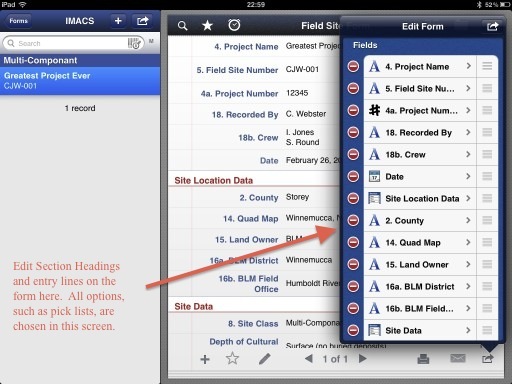
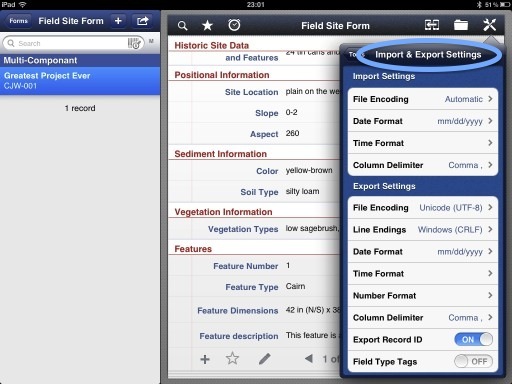
My biggest problem with making my digital site recording dream a reality is that I don't know how to program iOS apps, or program in Objective-C, or program in any language, or know a whole lot about databases.  So, I've had a lot to learn, and still do.  In the mean time I heard about this app called Tap Forms.  It goes a long way toward making digital site recording a reality.  I can do pretty much everything that I need to as far as filling out the form goes.  It won't let me fill out the artifact tables but that is the only real hang up.  Having the ability to populate a word document with everything but the artifact tables and references still saves a lot of time.  Of course, some minor editing should be done but my trial runs have shown that editing will be minimal if Crew Chiefs are taught how write in the field.  Actually, that seems to be the biggest problem: getting everyone to write well and consistently.  That's another issue for another time.

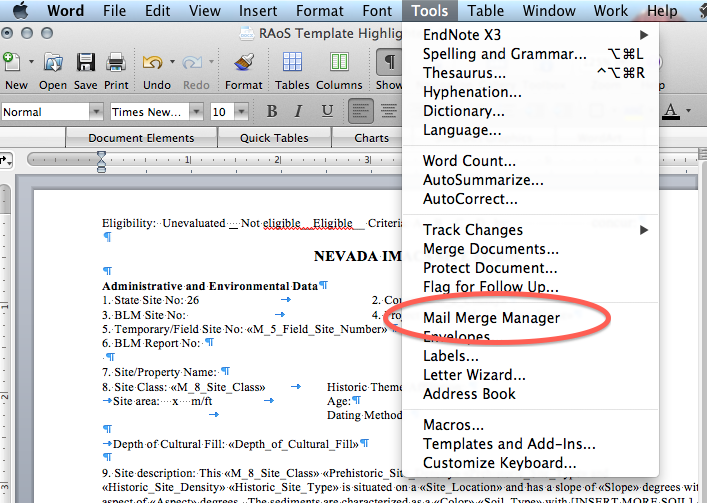
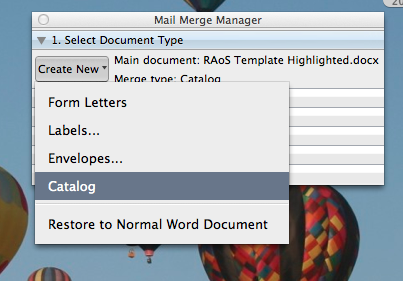
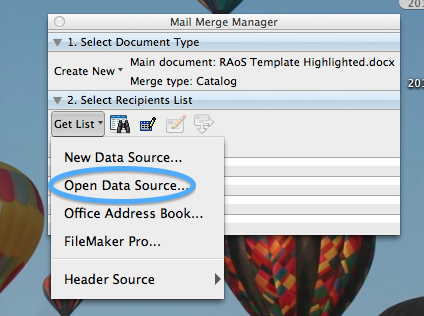
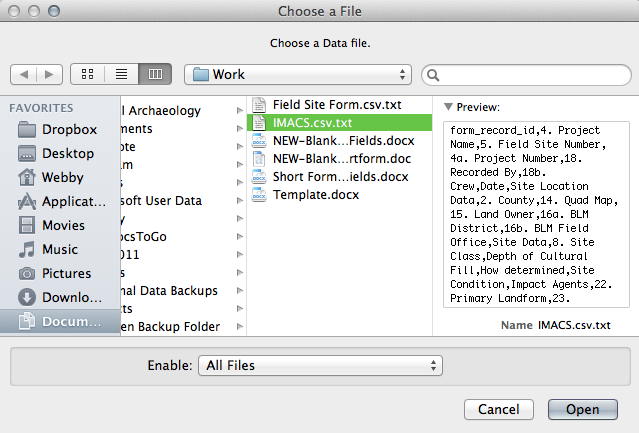
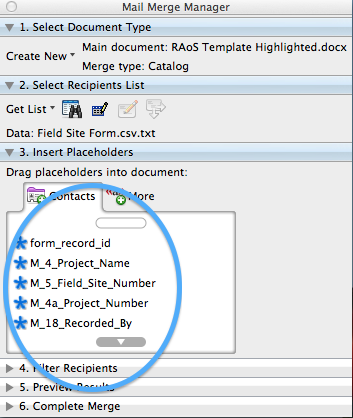
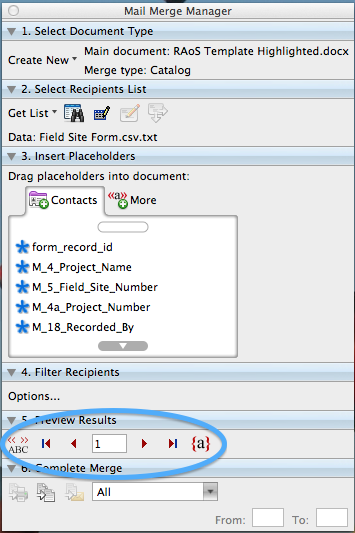
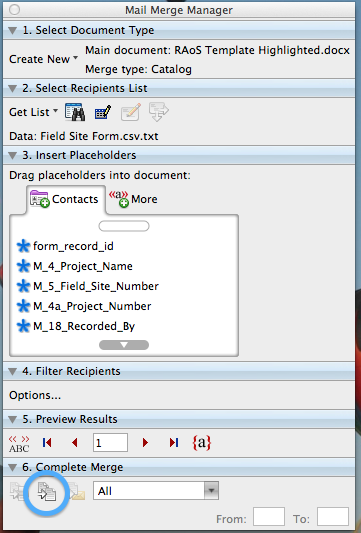
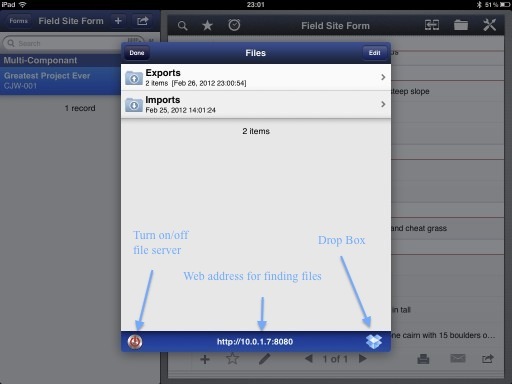
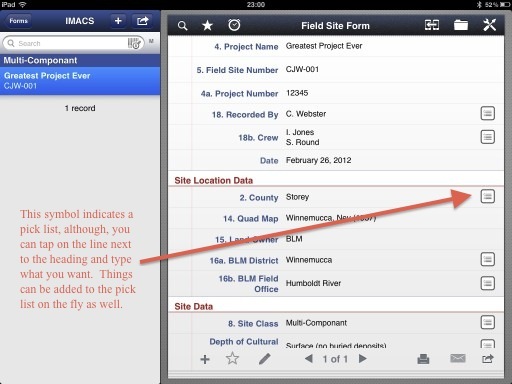
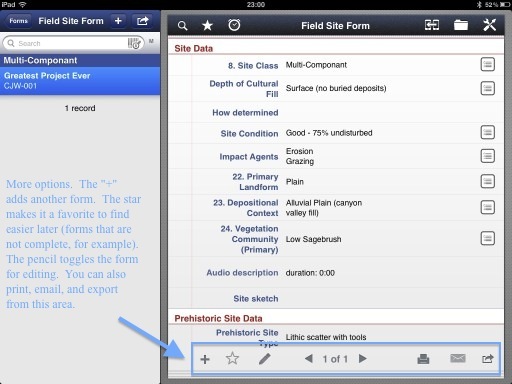
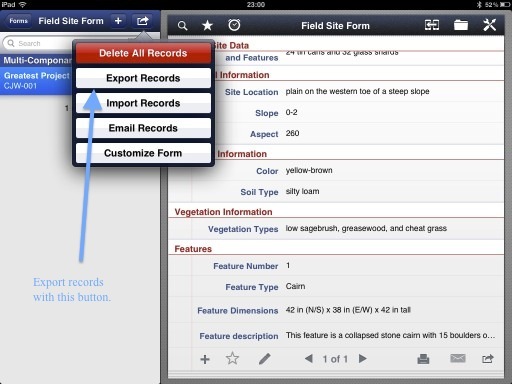
Below is a slide show that shows how I used Tap Forms and how I got the file it exported to merge with Word.

Now I just need a company to trust me enough to use it in the field.  If you try this then let me know how it went.

Note that if you change or add any lines on the form in Tap Forms you will need to change the place holders in your Word document.  If you don't change the form then you can save the word document as a template for future site forms.

Hope it works out!  Let me know!